Process Commands
Boot Process
🟢 BIOS/UEFI runs first - checking your hardware, running the power-on self-test (POST).
🟢 Devices are detected and the system picks a boot device.
🟢 GRUB or another bootloader takes over - deciding which kernel to boot.
🟢 The kernel loads and starts mounting filesystems.
🟢 Systemd takes control - handling processes, services, and targets.
🟢 Finally, you get to the login screen.
Watch these steps
Commands
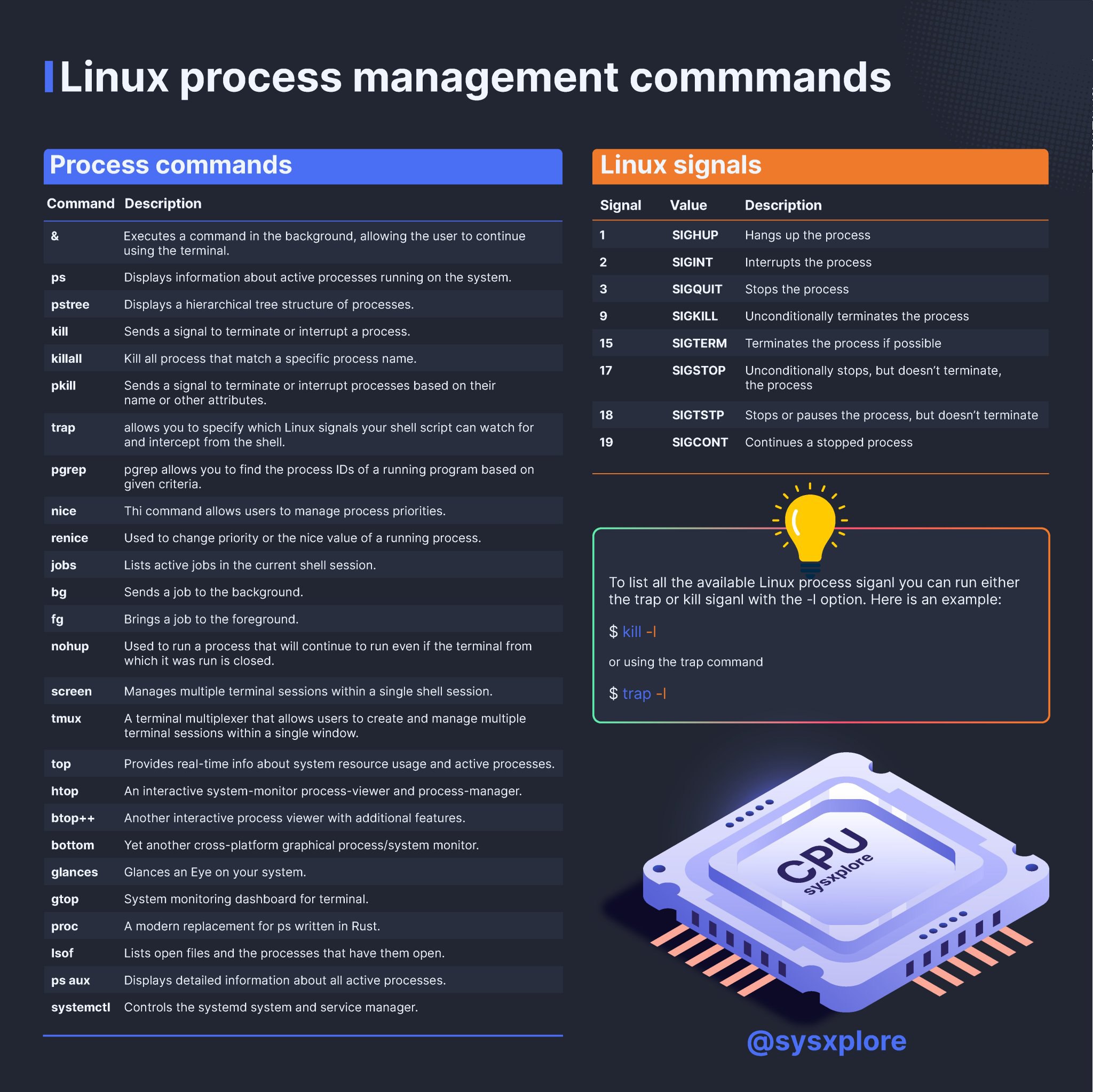
Process Management Commands
-
ps- Displays information about active processes.
- Example:
ps aux(shows all running processes with detailed information).
-
top- Provides a real-time view of running processes and system resource usage (CPU, memory, etc.).
- Press
qto exit.
-
htop- An interactive process viewer similar to
top, but with a more user-friendly interface (requires installation on some systems). - Example:
htop.
- An interactive process viewer similar to
-
pidof- Finds the process ID (PID) of a running program.
- Example:
pidof sshd(returns the PID of the SSH daemon).
-
kill- Sends a signal to a process, typically to terminate it.
- Example:
kill 1234(sends a termination signal to the process with PID 1234).
-
pkill- Terminates processes based on their name or other attributes.
- Example:
pkill firefox(kills all Firefox processes).
-
killall- Kills all processes with a specified name.
- Example:
killall chrome(terminates all Chrome processes).
-
nice- Starts a process with a modified scheduling priority (lower priority means less CPU time).
- Example:
nice -n 10 command(runscommandwith a priority of 10).
-
renice- Changes the priority of a running process.
- Example:
renice 5 1234(changes the priority of process 1234 to 5).
-
bg- Puts a paused (suspended) process into the background.
- Example: After pressing
Ctrl+Zto pause a process, typebgto resume it in the background.
-
fg- Brings a background process to the foreground.
- Example:
fg(brings the most recent background process to the foreground).
-
jobs- Lists all jobs (processes) running in the current shell session.
- Example:
jobs(displays a list of background/foreground jobs).
-
nohup- Runs a command immune to hangups, allowing it to continue running after the user logs out.
- Example:
nohup command > output.log &(runscommandand redirects output tooutput.log).
-
disown- Removes a job from the shell's job table, so it won't be terminated when the shell exits.
- Example:
disown %1(removes job 1 from the job table).
-
systemctl- Manages system services and processes (part of systemd).
- Example:
systemctl status sshd(checks the status of the SSH service).
-
service- Controls system services (legacy command, replaced by
systemctlin many systems). - Example:
service apache2 start(starts the Apache web server).
- Controls system services (legacy command, replaced by
-
pgrep- Searches for processes by name or other attributes and returns their PIDs.
- Example:
pgrep httpd(finds the PID of the HTTP daemon).
-
strace- Traces system calls and signals made by a process, useful for debugging.
- Example:
strace ls(traces the system calls made by thelscommand).
-
lsof- Lists open files and the processes that are using them.
- Example:
lsof -i :80(lists processes using port 80).
-
free- Displays the amount of free and used memory in the system.
- Example:
free -h(shows memory usage in human-readable format).
-
df- Reports file system disk space usage.
- Example:
df -h(shows disk usage in human-readable format).
-
uptime- Shows how long the system has been running.
- Example:
uptime(displays the system's uptime and load average).
-
w- Displays logged-in users and what they are doing.
- Example:
w(shows who is logged in and their active processes).
-
who- Lists currently logged-in users.
- Example:
who(displays usernames and login times).
-
id- Displays the user and group IDs of the current user.
- Example:
id(shows UID, GID, and groups for the current user).
Watch these steps
Description
The ps (Process Status) command in Linux is used to display information about active processes on the system. It provides a snapshot of the current processes running on the system, including their IDs, states, resource usage, and more.
Here’s a detailed explanation of commonly used ps command options:
Basic Syntax
Common Options
-
ps aux- Displays all processes running on the system with detailed information.
- Explanation of flags:
a: Shows processes for all users (not just the current user).u: Displays the process's user/owner.x: Includes processes not attached to a terminal.
-
ps -e- Lists all processes currently running on the system.
- Explanation:
-e: Equivalent tops aux, but without detailed information.
-
ps -ef- Displays all processes in a full-format listing.
- Explanation:
-e: Selects all processes.-f: Full format output, showing more details like UID, PID, PPID, etc.
-
ps -l- Displays processes in a long format.
- Explanation:
-l: Long format, which includes additional columns such as F (flags), S (process state), and NLWP (number of threads).
-
ps -u <username>- Displays processes owned by a specific user.
- Example:
- This will list all processes owned by the user
john.
-
ps -p <PID>- Displays information about a specific process by its Process ID (PID).
- Example:
- This will show details about the process with PID
1234.
-
ps -C <command>- Displays processes associated with a specific command name.
- Example:
- This will list all processes related to the
sshdcommand.
-
ps -T- Displays all processes associated with the current terminal session.
- Example:
-
ps -o- Allows you to customize the output fields.
- Example:
- This will display the PID, parent PID (PPID), command, memory usage (%MEM), and CPU usage (%CPU) for all processes.
-
ps -H- Displays processes in a hierarchical tree format.
- Example:
- This will show all processes in a tree-like structure, making it easier to see parent-child relationships.
-
ps -A- Displays all processes, similar to
ps -e. - Example:
- Displays all processes, similar to
-
ps -f- Displays processes in a full-format listing.
- Example:
- This will include additional columns such as UID, PID, PPID, C (CPU usage), STIME (start time), TTY, TIME, and CMD.
-
ps -U <user>- Displays processes owned by a specific user or group.
- Example:
- This will list all processes owned by the
rootuser.
-
ps -t <tty>- Displays processes associated with a specific terminal.
- Example:
- This will list all processes running on the terminal
pts/0.
-
ps -L- Displays thread information for each process.
- Example:
Output Columns Explained
When using ps aux or ps -ef, the output typically includes the following columns:
- USER: The owner of the process.
- PID: The Process ID.
- %CPU: The percentage of CPU resources used by the process.
- %MEM: The percentage of memory resources used by the process.
- VSZ: Virtual memory size (in kilobytes).
- RSS: Resident Set Size (physical memory used by the process).
- TTY: The controlling terminal for the process.
- STAT: Process state (e.g., R = running, S = sleeping, Z = zombie).
- START: When the process started.
- TIME: Cumulative CPU time used by the process.
- COMMAND: The command that started the process.
Examples
-
List all processes with detailed information:
-
Find processes owned by a specific user:
-
Display only specific fields (e.g., PID, command, memory, and CPU usage):
-
Show processes in a hierarchical tree format:
-
Search for a specific process by name:
-
Check the status of a specific process by PID:
By combining these options, you can tailor the output of the ps command to suit your needs, whether you're monitoring system performance, debugging issues, or managing processes.